
What Should You Do Before Setting Up Your AE BOX II?
The Goldshell AE-BOX II is the perfect upgrade for crypto miners who want power, efficiency, and quiet operation! Designed for privacy-focused blockchains like Aleo (ALEO) and optimized for zkSNARK, this compact miner delivers top-tier performance while keeping energy costs low. Whether you’re a beginner or a pro, it’s the ideal choice for hassle-free home mining!

When purchasing a miner machine, ensure you have acquired a PSU with 6-pin cables, an Ethernet cable, and an AC power cord.The Goldshell BOX series requires a power supply with two or more separate cables coming out of it and an Ethernet cable. If your miner supports Wi-Fi connection, the Ethernet cable is not necessary.
Before using the miner, please have an initial inspection with the miner:
How to Inspect Your Goldshell Miner for Damage
Before using your Goldshell miner, follow these steps to ensure it’s in perfect condition:
1️⃣ Check for Physical Damage
- Inspect the package and miner for any signs of deformation or external damage.
2️⃣ Examine the Cooling Fan
- Verify that the fan is intact and undamaged to ensure proper cooling performance.
3️⃣ Listen for Unusual Noises
- Power on the miner and listen for abnormal sounds (e.g., grinding or rattling).
- Visually check if the heat sink is securely attached (loose parts may cause overheating).
⚠️ Found an Issue? Here’s What to Do:
- Take clear photos of the damage or defect.
- Contact Goldshell Support immediately for warranty assistance.
*Important: Do NOT try to dismantle the miner by yourself. The miner is secured with an anti-disassembly label. Unauthorized disassembly will result in the warranty being voided.
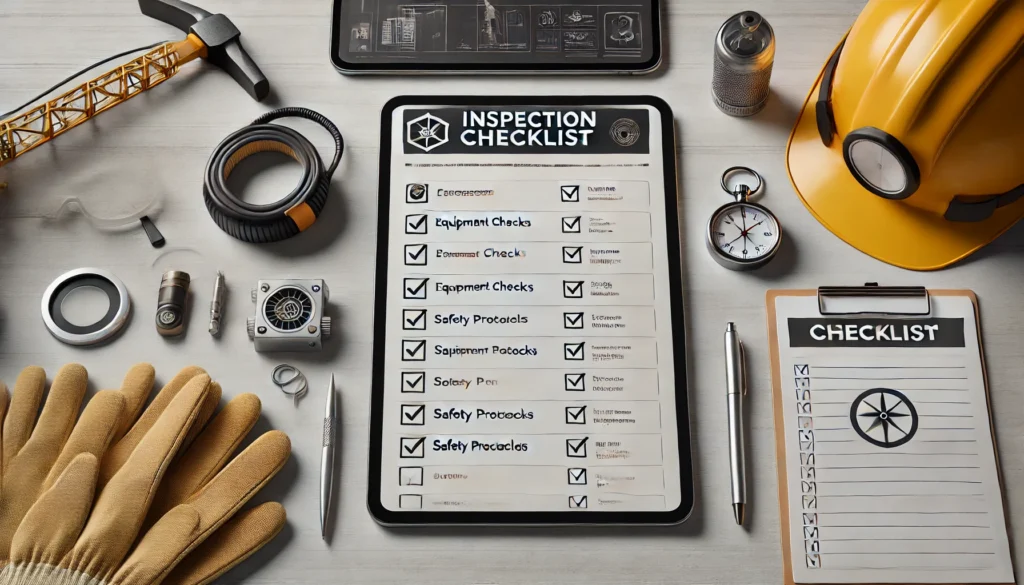
Goldshell AE BOX II Setup Guide: Optimize Your Mining Performance
1. Hardware Setup & Power Connection
✅ Stable Power Supply Required
- Use a grounded power outlet and ensure the miner’s power cord is securely connected.
- Double-check all cables (Ethernet, power) for loose connections.
2. Network Configuration Tips
🌐 Wired Connection Recommended
- For stable mining, connect the AE BOX II directly to your router via Ethernet.
- Avoid Wi-Fi if possible to reduce latency and disconnections.
3. Ideal Installation Location
❄️ Prevent Overheating
- Place the miner in a cool, well-ventilated area (e.g., away from direct sunlight or enclosed spaces).
- Ensure at least 6 inches of clearance around the miner for airflow.
4. Mining Pool Account Setup
⛏️ Pre-Mining Preparation
- Register an account on a trusted mining pool (e.g., Aleo Official Pool).
- Keep your login details handy for quick miner configuration.
⚠️ Pro Tip: Bookmark Goldshell’s official support page for troubleshooting!

How to Set Up Your AE BOX II for Mining?
The Miner comes with a detailed “how to start” user manual that users can refer to when getting started with AE Box II.
Connect the Miner
| Step | Description |
|---|---|
| 1 | Plug one end of the Ethernet cable into your miner’s Ethernet port. |
| 2 | Connect the other end of the Ethernet cable to your network source, such as a router or switch. |
| 3 | Power on your miner by connecting it to a power supply. |
| 4 | After powering on, the indicator lights near the power interface will simultaneously flash red and green for a brief moment. Soon after, the red light will turn off and the green light will remain steady, indicating a successful startup. |
| 5 | Near the IP button, you’ll notice the indicator lights flashing red and blue. After a short while, only the blue light will be rapidly blinking. |
The Goldshell AE Box II comes with a Wi-Fi antenna, found on the right side of the box. Just screw it onto the back of the ASIC to set it up. Unlike most ASICs, the AE Box II supports Wi-Fi for easy connectivity.
Configuring the Miner
Get the IP of the miner and enter the miner’s dashboard
- Visit find.goldshell.com using a browser like Google Chrome on your phone or computer.
- Make sure your miner and device are on the same network and frequency band.
- The website will detect the miner’s IP address within 6 minutes of startup.
- If the IP doesn’t match, press the miner’s IP button and refresh the website.
- Click the settings icon to access the miner’s dashboard.
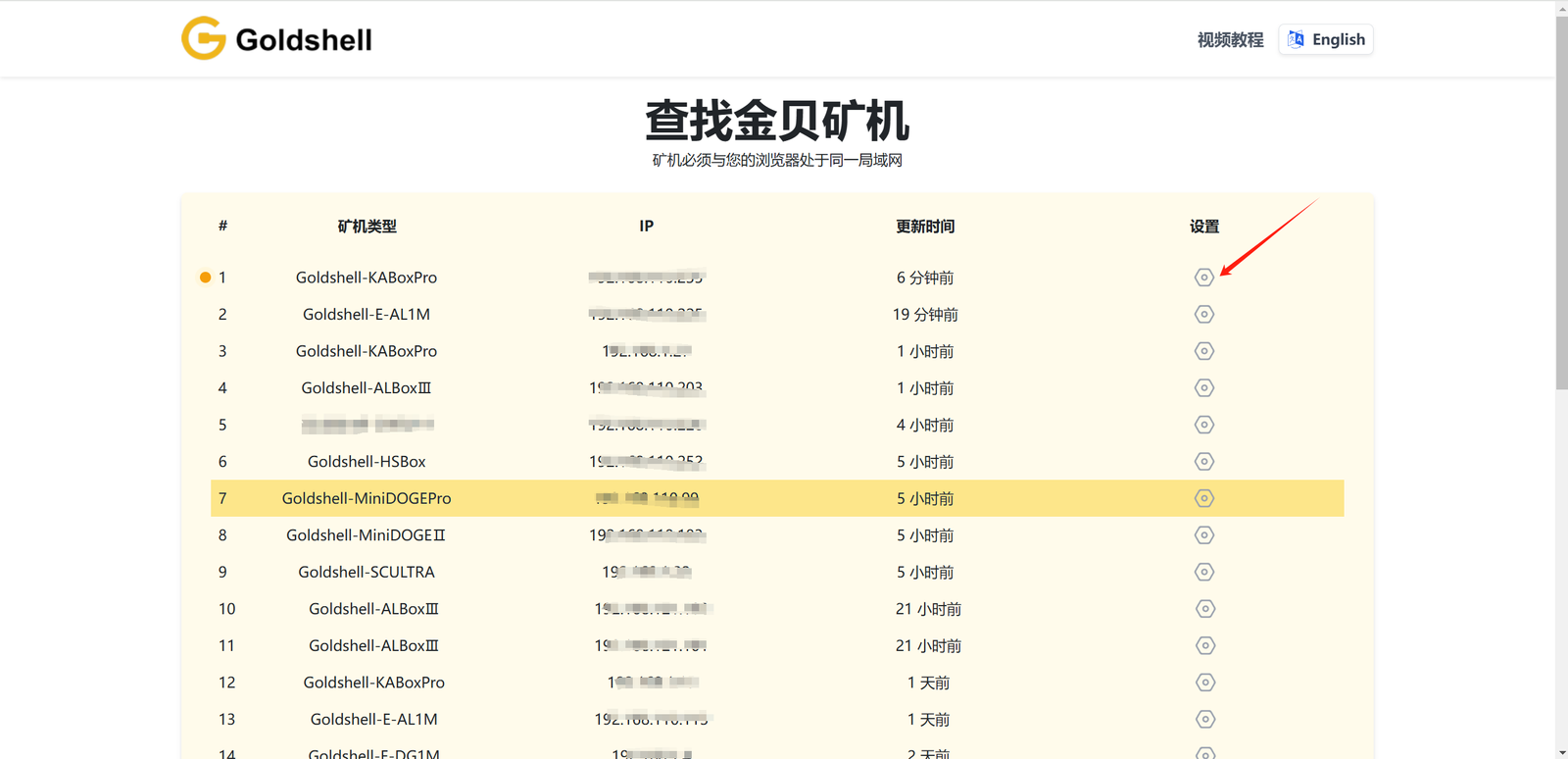
Miner settings
Language Switch
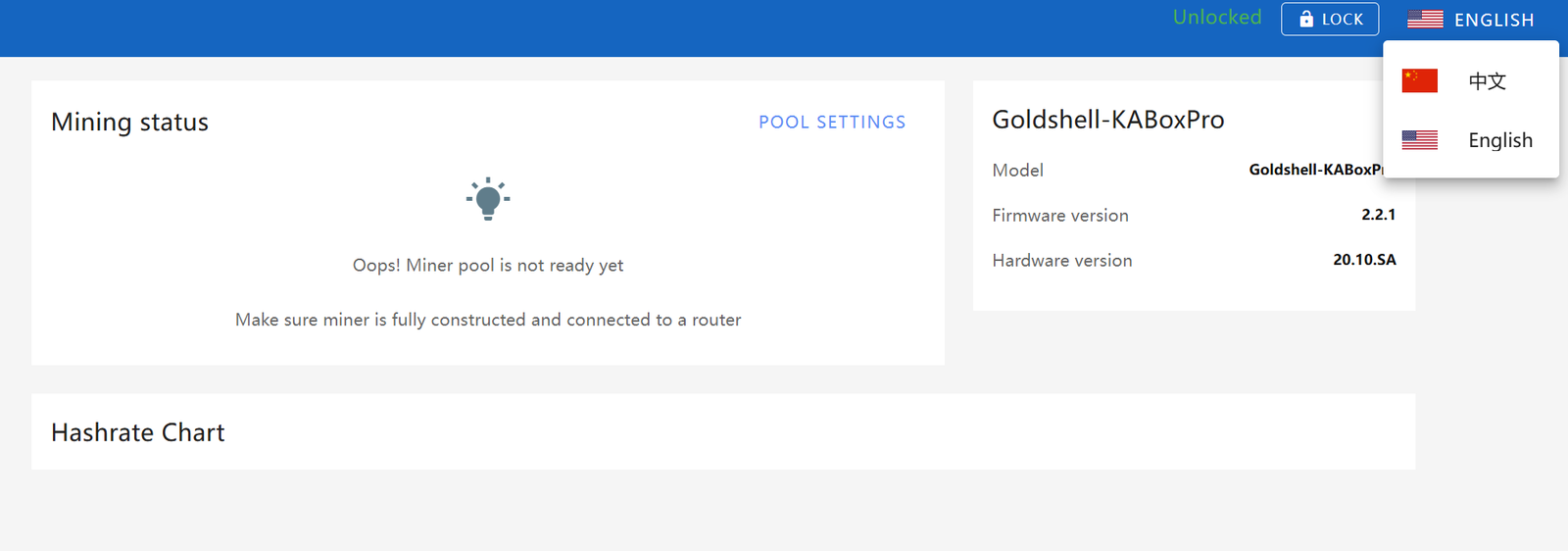
Unlock the Miner

Change the Password

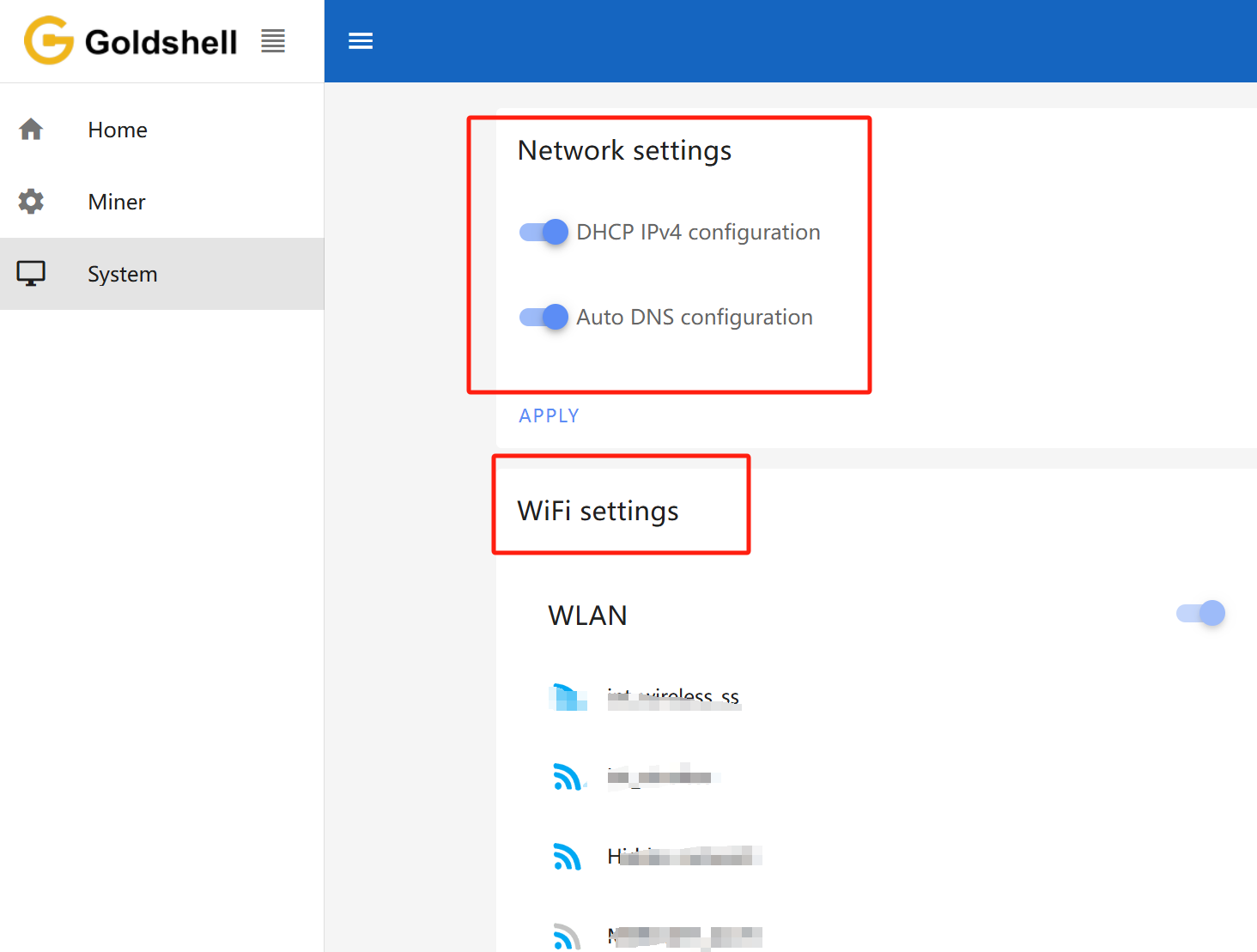
Network Settings
Add a Mining Pool

Note:
- Ensure that the pool information matches the mined cryptocurrency.
- If you switch to a different algorithm to mine a different cryptocurrency, remove the original pool addresses and add a new one.
- All miners can be set up with 3 mining pools, with priority decreasing from the top pool to the bottom pool.
Wait for a successful pool connection, then navigate to the [Home] section and monitor the chart. If you observe a hashrate curve, it indicates a successful pool configuration.
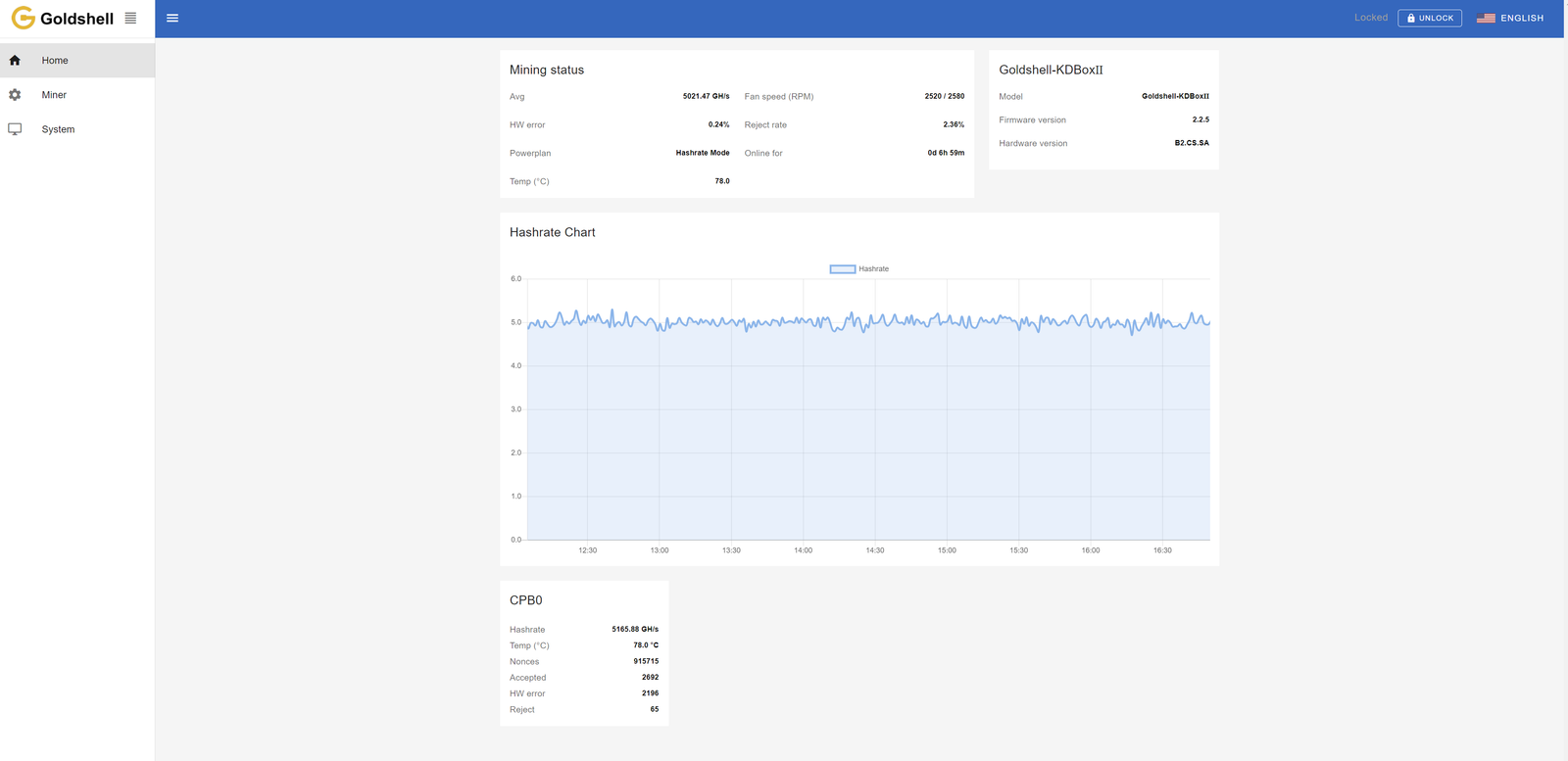
Introduction to Miner Dashboard Data
Home Page
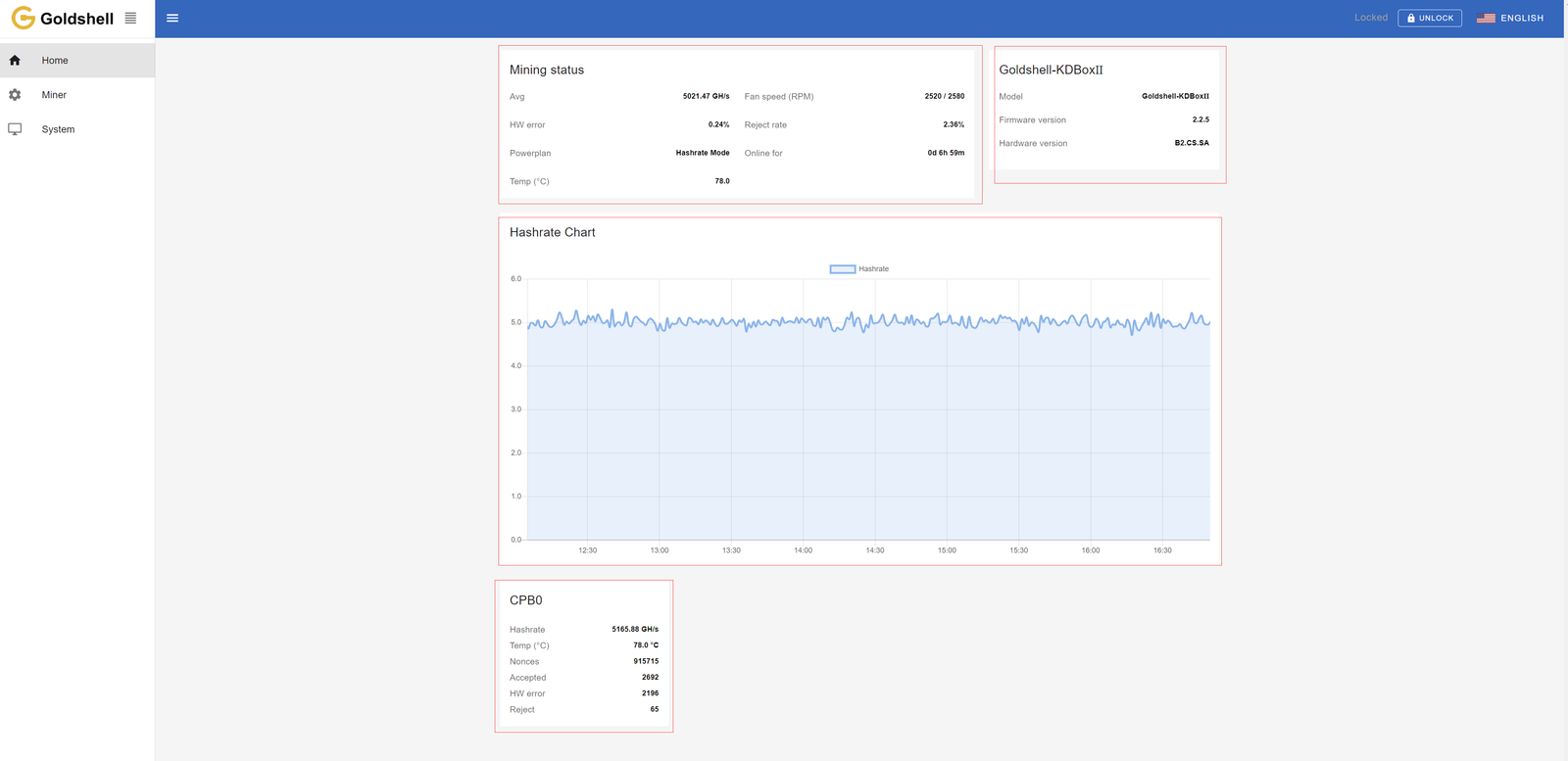
Miner Page

System Page

Note:
- Ensure pool information matches the mined cryptocurrency.
- High HW error rates (>5%) and reject rates (>10%) may indicate issues with the miner.
- Regularly update firmware and change passwords for security.
How to Troubleshoot Common Issues with the AE BOX II?
Encountering issues? Here’s how to diagnose and fix common problems.
Common issues include network connectivity, abnormal hash rates, and power failures, which can often be resolved with simple checks.

Goldshell AE BOX II Troubleshooting Guide: Fix Common Issues Fast
1. Network Connection Problems
🌐 Can’t Connect to Network? Try These Fixes:
- Inspect all Ethernet cables for damage or loose connections
- Verify router ports are functioning properly
- Reboot both miner and router to refresh connections
- Check for IP conflicts in your network settings
2. Mining Performance Issues
⚡ Low Hashrate Solutions:
- Double-check mining pool address and port settings
- Monitor real-time miner temperature (ideal: 60-75°C)
- Test with alternative stable power source (110V/220V)
- Ensure proper ventilation around your mining device
3. Power Failure Troubleshooting
🔋 Miner Won’t Turn On? Follow These Steps:
- Test power outlet with another device
- Examine power cord for frays or damage
- Try different power cable if available
- Check for tripped circuit breakers in your electrical panel
Pro Tip: Always keep your miner’s firmware updated for optimal performance and bug fixes. Visit Goldshell’s support portal for the latest updates.
What Information Should You Prepare for Customer Support?
When contacting support, having the right information can speed up the process.
Prepare your miner’s model, serial number, a description of the issue, and any relevant logs or error messages.

📋 Required Information for Efficient Technical Support
To help us resolve your issue quickly, please provide the following details:
1. Device Identification
- Miner Model: (Example: AE BOX II)
- Serial Number: (Located on the back of your device)
2. Problem Description
- Clearly describe your issue:
- Startup failure?
- Network connectivity problems?
- Performance degradation?
- Error messages received?
3. Diagnostic Data
- System Logs: Share recent operation logs
- Error Screenshots: Capture any error messages
- Dashboard Screenshot: Full miner status page
4. Mining Pool Configuration
- Pool name and URL
- Your wallet/account details
- Port settings being used
🔍 Pro Tip: Including this information in your first support request can reduce resolution time by up to 50%.
📸 How to Capture Helpful Screenshots
- Press “Print Screen” on your keyboard
- Paste into Paint or Word document
- Save as JPEG or PNG
- Attach to your support ticket
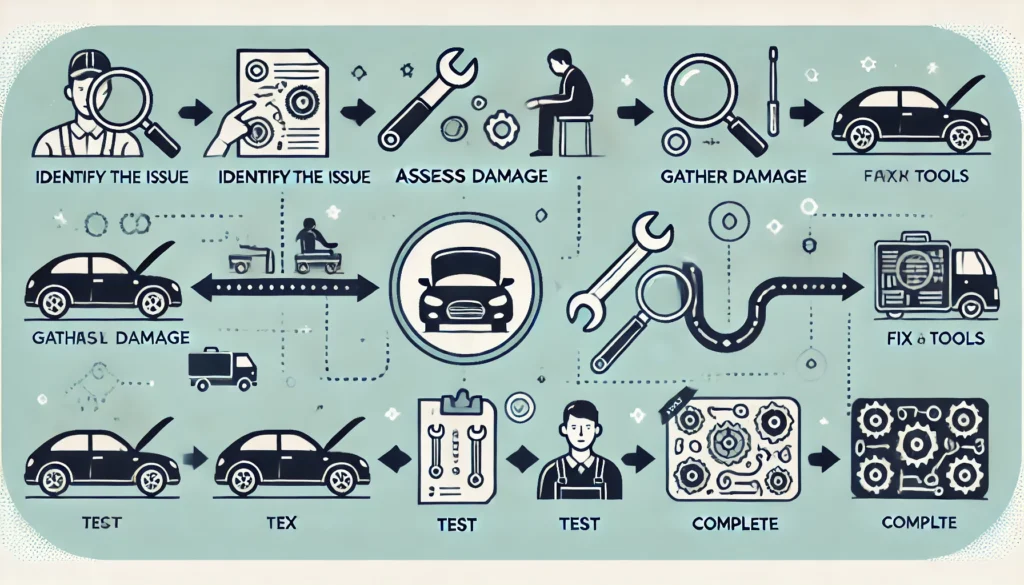
What Is the Repair Process for the AE BOX II?
If your miner needs repair, here’s what to expect.
Contact Goldshell support, provide necessary details, and follow their instructions to send the device for repair.
1️⃣ Contact Goldshell Support
📞 How to Reach Goldshell:
- Visit [Goldshell Official Support Page]
- Submit a ticket
Pro Tip: Have your serial number ready for faster service!
2️⃣ Initial Diagnosis
🩺 What Goldshell Need From You:
- Clear description of the issue
- Device model & serial number
- Recent error logs/screenshots
- Mining pool configuration details
3️⃣ Shipping Instructions
📦 Preparing Your Miner for Return:
- Use original packaging if possible
- Include all accessories
- Follow Goldshell provided shipping label instructions
- Insure your shipment (recommended)
4️⃣ Professional Repair Service
🛠️ Goldshell Service:
- Certified technicians handle all repairs
- Full hardware diagnostics
- Firmware updates if needed
- 48-hour testing period post-repair
5️⃣ Fast Return Delivery
🚚 Getting Your Miner Back:
- Typically shipped within 3 business days after repair
- Trackable express shipping
- Signature required upon delivery
⏳ Estimated Turnaround Time
- Diagnosis: 1-2 business days
- Repair: 3-5 business days
- Total process: 7-10 business days
Conclusion
To get the most out of your Goldshell AE BOX II and enjoy smooth, efficient ALEO mining, proper setup and regular maintenance are key! By following the recommended guidelines and keeping an eye on performance with routine checks, you can maximize your mining output and extend the lifespan of your device.
Want to stay updated with the latest tips and news about the AE BOX II? Click here for more helpful resources and support!

