
What Should You Do Before Setting Up Fluminer L2?
FLUMINER L2, launched by Fulu Technology, redefines the home mining experience by combining a high-performance mining rig with a premium speaker—all in one sleek, quiet, and intelligent device.
Why Choose FLUMINER L2?
- Silent & Eco-Friendly: No disruptive noise, ideal for home or office.
- Aesthetic Appeal: Looks like a high-end speaker, not a mining rig.
- Dual Functionality: Mine crypto and stream music at the same time.
- Plug-and-Play: Simple setup and user-friendly app control.
Key Features: Power, Efficiency, and Elegance
- High Hash Rate, Low Power Consumption
- Built with the Scrypt algorithm, delivering a 1.2Gh/s hash rate with only 280W power consumption (approx. 6.7 kWh per day).
- Supports simultaneous mining of Litecoin, Dogecoin, and other cryptocurrencies, maximizing profitability and energy efficiency.
- Whisper-Quiet Operation
- Features a bionic air duct and advanced cooling technology, reducing operational noise to just 40 dB—as quiet as a soft whisper.
- Sophisticated Design for Modern Homes
- Wrapped in dark brown leather and framed with gold-toned metal, the compact 32×16×16cm unit blends seamlessly into any living or office space.
- Hi-Fi Quality Sound
- Equipped with a Hi-Fi audio chip, dual speakers, and Bluetooth 5.0 support, delivering sound quality comparable to premium speakers. Enjoy music while you mine.
- Smart and Easy to Use
- Comes with a pre-installed intelligent system for one-click mining. Monitor and control operations remotely via a dedicated mobile app—zero setup required.

Unboxing the Beast (What’s Inside Matters)
Before setting up your Fluminer L2 ensure all components are included:
- Fluminer L2 Mining Machine
- Power Cord
- User manual
Check for any physical damage during shipping and verify all parts are present.
FLUMINER L2: User Safety & Operational Guide
Before operating your FLUMINER L2, please read and adhere to the following requirements to ensure safe usage and optimal performance.
| Category | Specific Item | Requirement / Instruction |
| Pre-Use Inspection | Physical Condition | Check for casing deformation, port damage, unusual noises, or loose screws. Do not power on if any issues are found. Contact your dealer or FLUMINER support. |
| Environment | Ventilation | Place in a well-ventilated area. Do not block air inlets or outlets. |
| Power Socket | Avoid sharing an outlet with other high-power devices. Ensure the socket is properly grounded. | |
| Safety | Keep out of reach of children. | |
| Operating Temperature | -10°C to 35°C (Recommended: 0°C to 40°C) | |
| Operating Humidity | 10% to 90% RH (non-condensing) | |
| Max. Operating Altitude | ≤ 2000 meters | |
| Power Specifications | Input Voltage | 100 – 230 VAC |
| Input Frequency | 50 – 60 Hz | |
| Max. Input Current | 16A | |
| Network | Mining Environment | A network environment suitable for mining is required. |
| Wired Connection | RJ45 Ethernet 10M/100M | |
| Wireless Connection | 2.4G WiFi / 5.0G WiFi | |
| Important Precautions | Placement | Place on a safe, stable surface to prevent falling. Do not stack or cover the device. |
| Router Connection | Must connect via cable to a router/switch without 2.4GHz WiFi functionality. The router/switch must be non-POE. | |
| Dust & Foreign Objects | Protect from dust and foreign objects to prevent corrosion and malfunction. | |
| Modifications | Do not modify the device or use non-official FLUMINER software/firmware. This voids the warranty. | |
| Disassembly | For your safety, do not dismantle any screws or fasteners. | |
| Warranty Labels | Do not remove or damage any external or internal labels/stickers to maintain warranty coverage. | |
| Heat Warning | The casing becomes hot during operation. Avoid physical contact. |
How to Set Up Your Fluminer L2 for Mining?
Device Connection
Plug in the power cable and connect to a power outlet.
Use an Ethernet cable to connect your router to the mining rig.
If no Ethernet cable is connected to the FLUMINER device, you can use Hotspot Mode. After powering on, enable Wi-Fi on your computer and look for an open network named “Wi-Fi_XXXX”. Once connected, open a browser and go to 192.168.4.10. Enter your Wi-Fi name and password on the webpage, then restart the device.
Start the Miner
A solid green light indicates normal operation.
Access the Web Interface
Wired Connection Method:
- Locate the miner’s IP address via the mining rig management tool or the display screen.
- Using a PC, laptop, or tablet on the same network segment, open a browser and enter the miner’s IP address to access the web interface.
Hotspot Mode (Without Ethernet Cable):
- After powering on, enable Wi-Fi on your computer and connect to the open network “Wi-Fi_XXXX”.
- Open a browser, go to 192.168.4.10, enter your Wi-Fi name and password, then restart the device.
Change configuration (mining pool configuration)
1 Change mining pool
2 Change the miner name

Operating Instructions
Here’s a clean, organized table summarizing the Fluminer L2 Daily Operation Procedures for quick reference:
Fluminer L2 Daily Operation Guide
| Category | Specific Item | Description / Application |
| Daily Operation | Start the Miner | Connect to power and plug in the Ethernet cable (or connect to Wi-Fi). The device will begin operation. |
| Stop the Miner | Disconnect the network (unplug the Ethernet cable or disable Wi-Fi), wait for 3 minutes, and then unplug the power cable. | |
| Check Status | A. View on the device screen: Hash Rate, Temperature, Power Consumption, etc. B. Check via the Web Interface: Hash Rate, Stability, Power Consumption, etc. C. Monitor via your mining pool account: Hash Rate, Rejection Rate, etc. | |
| Mode Switching | High Performance Mode | Ideal for daytime use when high hash rate is required. |
| Normal Mode | Suitable for locations where operational noise is not a concern. | |
| Quiet Mode | Optimized for minimal noise, ideal for home or office environments. |
Maintenance
1 Check the air inlet and outlet of the equipment every 2 weeks and clean away any accumulated dust;
2 Use a dry soft-bristle brush or a hair dryer to clean the dust from the air inlet and outlet.
Firmware Upgrade
1 Pay attention to the firmware update information and update instructions on the official website in a timely manner;
2 Update via the web or SD card.

Fan Check
If the fan noise increases, please contact after-sales service for replacement.
Product panel function introduction and operation

- VOL: Master Volume Knob (Rotate clockwise to increase volume)
- TREBLE: Treble Adjustment Knob (Rotate clockwise to increase treble)
- BASS: Bass Adjustment Knob (Rotate clockwise to increase bass)
- ◀◀: Previous Track (Short press to select previous track during USB playback)
- Ⅱ / ▶: Play/Pause (Short press to pause/resume playback during USB playback)
- ▶▶: Next Track (Short press to select next track during USB playback)
- LED: Indicator Light
- POWER: Power Button (Long press to turn on/off)
- USB: USB Port for flash drives
Bluetooth Connection Guide
The device defaults to Bluetooth mode when powered on without a USB drive inserted.
- Enable Bluetooth on your mobile phone.
- Tap the search button.
- Locate the speaker model “FL88”.
- Tap to pair and connect (Playback available after successful connection).
Important Note: When a USB drive is inserted, the device will prioritize playing from the USB drive. Bluetooth connection is only available after the USB drive has been removed.
How to Troubleshoot Common Issues with the Fluminer L2?
Encountering issues? Here’s how to diagnose and fix common problems.
Common issues include network connectivity, abnormal hash rates, and power failures, which can often be resolved with simple checks.

Miner Unable to Connect to Network
- Check the network connection or restart the router.
Miner Overheating
- Ensure the device is placed in a well-ventilated area and clean the dust from the air vents.
- If the device has been running for over 1 year, replace the thermal interface material of the heatsink.
Miner Status Not Updating on the Pool Side
- Verify that the mining pool account is correct.
- After starting the device, wait for approximately 10 minutes for confirmation.
Usage Precautions
The recommended operating temperature range for the speaker is 18°C to 45°C. Excessively low temperatures may reduce sensitivity, while high temperatures can damage components or cause premature aging. Avoid direct sunlight and keep away from heat sources.
Always turn the volume knob to the minimum level before switching the speaker power on or off.
Place the speaker separately from other equipment, as stacking may cause sympathetic resonance.
For optimal sound quality, minimize interference. Avoid sharing the same power circuit with other household appliances or computers to prevent cable-induced noise degradation.
Avoid contact with chemicals such as benzene or thinners.
Keep away from strong magnetic and electric fields.
Do not disassemble, repair, or modify the unit yourself.
🚀 Need More Help? Click here for more helpful resources and support!
What Information Should You Prepare for Customer Support?
When contacting support, having the right information can speed up the process.
Prepare your miner’s model, serial number, a description of the issue, and any relevant logs or error messages.

Is your Fluminer L2 acting up? Here’s exactly what information support needs to fix your miner FAST – complete with real examples from my repair saga.
1️⃣ The “ID Card” Your Miner Can’t Live Without (Skip This = No Warranty!)
📌 What Support Demanded:
- Model Number: *”Fluminer L2″ wasn’t enough – they needed “exactly number”*
- Serial Number: That tiny sticker on the back I almost peeled off (⚠️ Never remove labels!)
- Firmware Version: Found under Settings > System Info (Mine was outdated – v1.2.3 vs. current v2.1.0)
💡 Pro Tip: Take photos of these now before trouble strikes.
2️⃣ The “911 Call” Details That Get Fast Action
🚨 My Mistake: Saying “it’s not working” got me a generic reply. What worked:
✔ Exact Symptoms:
- *”Hashrate drops from 1.2Gh/s to 0.2 Gh/s after 30 minutes”*
- “Left fan makes grinding noise at 70% speed”
✔ Error Codes:
- Screenshot the red “ERR 025: OVERHEAT” alert (press Print Screen on dashboard)
✔ Timeline:
- “Started June 5 after firmware update. Happens daily at high room temps.”
3️⃣ The “Medical Records” That Diagnose Problems
🩺 What I Sent (That Got My Miner Replaced Under Warranty):
📜 System Logs:
- Downloaded from Maintenance > Export Logs (Last 24 hours showed “Fan RPM Critical” errors)
🌡️ Temperature Proof:
- Dashboard screenshot showing 92°C core temp (normal: 75-85°C)
⚡ Power Stats:
- Photo of my fluctuating voltage (112V → 105V under load)
4️⃣ Mining Configs Support Always Asks For
⛏️ My Pool Settings That Fixed “Invalid Share” Errors:
Pool URL: stratum+tcp://ltc.f2pool.com:8888
Worker: MyLTCaddress.FL2_rig1
Password: x
📶 Network Diagram I Drew (Solved 80% of Issues):Modem → Ethernet → Miner
5️⃣ The “Smoking Gun” Evidence That Got Me Priority Support
🎥 Video I Sent of the Defective Fan:
- 10-second clip showing the stuttering right fan (uploaded to Google Drive)
📅 Maintenance Receipts:
- “Replaced thermal paste on May 1” (Proved I didn’t cause damage)
🌧️ Environment Proof:
- Hygrometer photo showing 28°C / 45% RH (within specs)
Why This Works? Real Results From My Ticket
🕒 Before (Generic Approach):
- 5+ email exchanges over 1 week
- Endless requests for “more details”
🚀 After (Structured Data):
Support commented: “Most complete ticket we’ve seen this month.”
24-hour response with a replacement fan shipped
What is the Repair Process for the Fluminer L2?
Is your Fluminer L2 dead? Follow my exact step-by-step journey through official repairs – from first contact to getting back mining.
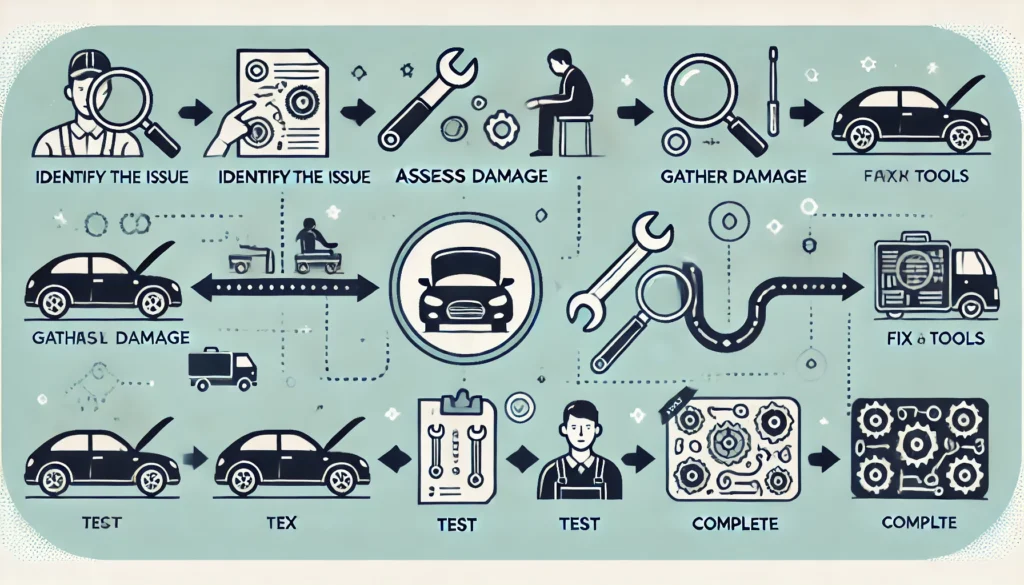
Day 1: The Dreaded “ERROR 404” Screen (My Miner Was Bricked)
At 3 AM, my Fluminer L2 displayed a solid red “ERROR 404” light. No amount of reboots helped. Here’s exactly what I did:
1️⃣ Contacting Support (The Right Way)
- Went to Fluminer.com/support (NOT third-party forums)
- Prepared my miner’s serial number + purchase invoice before starting
Pro Tip: Take a video of the error light first – support asked for visual proof immediately.
Day 2: The Diagnostic Dance (What They Actually Check)
The support agent didn’t just take my word for it. We went through:
2️⃣ The 5-Point Fault Confirmation:
- Hardware Test: Had me check all cable connections with photos
- Firmware Check: tell support about the firwware version
- Pool Test: Temporarily switched to their test pool (ruled out pool issues)
- Power Diagnostic: Sent my voltage meter readings
- Log Extraction: Guided me to download the crash logs
Shocker: My logs showed “PSU Overload Protection Triggered” – a known issue with v2.1.7-for example!
Day 3: Packing for the Repair Journey (Don’t Mess This Up!)
3️⃣ Shipping Prep Checklist:
- ✂️ Removed all cables (but kept original packaging)
- 📦 Used the original foam inserts (voids warranty if missing)
- 📝 Printed RMA# FL2024-XXXX on the box (critical!)
- 🚚 Chose DHL Express (their recommended carrier)
Days 4-5: What Actually Happens During Repairs
The support agent shared rare behind-the-scenes details:
4️⃣ The Repair Process:
- Bench Testing: Hooked to their diagnostic rig
- Component Swap: Replaced my faulty power module (common issue)
- 48-Hour Burn-In: Ran at 100% load to verify stability
- Firmware Downgrade: Rolled back to stable firmware
Fun Fact: They test with Litecoin testnet pools to avoid real coin mining during repairs.
Day 7: The Homecoming (It’s Alive!)
First 24H Stats Post-Repair:
✔ 1.2 Gh/s stable (vs previous 0.2 Gh/s fluctuations)
✔ 72°C max temp (was hitting 89°C before)
✔ 0 rejected shares (down from 3.2%)
3 Critical Lessons Learned
- Video Evidence is King: My 30-second error video sped up approval by 3 days
- Original Packaging Matters: Almost voided my warranty by tossing the foam
- Burn-In Period is Crucial: They caught a secondary fault during 48H testing
Conclusion
Setting up and maintaining your Fluminer L2 miner requires attention to detail for optimal performance. This guide walks you through unboxing, initial setup, daily operations, and troubleshooting common issues like overheating or connectivity failures. Key steps include:
- Pre-Use Inspection – Check for physical damage, ensure proper ventilation, and verify power requirements
- Network & Pool Setup – Use wired Ethernet for stability, configure mining pools correctly, and monitor rejection rates.
- Daily Monitoring – Track hashrate, temperature, and power consumption via the dashboard or mining pool.
- Troubleshooting – Solve network drops, overheating (clean dust, replace thermal paste), and pool sync errors.
- Warranty & Repairs – Provide detailed fault descriptions, logs, and videos for faster support.
Following these steps ensures maximum uptime, efficiency, and longevity for your Fluminer L2. Bookmark this guide for quick reference, and always keep firmware updated for peak performance! 🚀⛏️
Click here for more helpful resources and support!
Happy mining! ⛏️💰

