
What Should You Do Before Setting Up Iceriver KS7?
Maximize your mining returns with the IceRiver KAS KS7. It combines peak performance (30Th/s) with superior energy efficiency (3,500W). Specialized for KHeavyHash, it’s the top miner for Kaspa and other supported coins, built to excel in competitive markets.

Before setting up your IceRiver KS7 ensure all components are included:
- KS7 ASIC Miner
- Ethernet cable (for network connection,Prepare yourself)
- User manual
Safety & Operational Guidelines
Electrical Safety
- Before powering on, check that all cable connections are secure and pay attention to electrical safety.
- Check for any physical interference that could damage the machine and be cautious of the risk of electric shock.
- Use a stable voltage power source.
Environmental Requirements
- Temperature: Ensure the ambient temperature is between 0°C and 40°C.
- Humidity: Ensure the environmental humidity is below 90%.
- Altitude: Operate the machine in environments below 2000 meters in altitude.
- Cleanliness: Keep the environment clean to prevent dust, hair, and other foreign objects from entering and damaging the machine.
Physical Setup & Usage
- Keep the hash board and all other components away from water and moisture.
- Do not cover the surface of the machine, as it becomes very hot during operation.
- Do not place flammable or explosive substances near the machine during operation.
Warranty & Servicing
- Damage to the machine, hash board, or components caused by crushing, burning, or an improper environment is not covered by the warranty.
- Customers must not disassemble the machine themselves without prior permission from the ICERIVER after-sales team.
Operating Environment
- Due to the high surface temperature of the server during operation, avoid covering the server
surface or placing flammable or explosive materials around it, and ensure that the ventilation holes
are not blocked. - Do not place the server near water or expose it to humid environments. Please keep the
environment clean to prevent dust, hair, willow catkins and other foreign objects from entering the
server and causing damage. Do not insert any objects into the slots of the server. This may damage
circuit components, leading to fire or electric shock.
Do not splash liquids onto the server. - The server should be placed in an environment below an altitude of 2000 meters to operate.
High altitude can lead to thin air and reduce heat dissipation efficiency, increasing the risk of power breakdown. At the same time, it will accelerate the aging of the fan, affect stability, and - shorten the lifespan of the equipment.
- Leave some space around the server. The recommended operating temperature for the server is
0-40 °C, and the humidity is below 90% RH. Be careful to avoid condensation at lower
temperatures. - The server should be placed in a secure location. Falling or dropping may cause damage.
- This server is not suitable for places where children may be present.
How to Set Up Your Iceriver KS7 for Mining?

Installation Guide
| Step | Instruction | Remark |
|---|---|---|
| 1 | Inspect the packaging and server for any deformation or damage. Check the fans and cables, and listen for any abnormal noises. | Do not disassemble the server yourself, as this will void the warranty. |
| 2 | Before installation, check for any physical obstructions that could damage the machine. | Be cautious of the risk of electric shock. |
| 3 | Before connecting the power supply, please refer to the installation manual. | Manual available at: https://www.iceriver.io/tutorial/ |
| 4 | The power outlet should be installed near the server. | The outlet must be easily accessible. |
| 5 | Ensure the server is connected to a stable voltage power source. | Prevents potential hardware damage. |
| 6 | Before powering on, check that all cable connections are secure and correctly aligned. | Critical for electrical safety and proper operation. |
| 7 | The server must not be directly connected to a primary power source. Power must be obtained through a safety isolation transformer or equivalent device. | Applicable only to equipment without an integrated power supply. |
| 8 | The server is managed via a web login. The default account is “admin” and the default password is “12345678”. | Change the password after the first startup. You will need to log in again with the new password. |


| Machine Status | D1 Light | D2 Light | D3 Light | D4 Light |
|---|---|---|---|---|
| Running Normally | Off | Blinking | Off | Off |
| Fan Abnormality | Blinking | Off | Blinking | Off |
| Network Issues | Blinking | Blinking | Off | Off |
| High-temperature Alarm | Off | Blinking | Blinking | Off |
Boot
Please connect the miner to the Ethernet first, and then plug in the power cord. Turn on the
machine, during the boot process, the red and green indicator lights on both sides will remain
steady. Wait until the D2 indicator light blinks (if it doesn’t blink for more than 10 minutes, please
check the network), and the D1, D3, D4 indicator lights all go off. This indicates that the miner
has started successfully.
Access Machine
Obtain Machine IP
Getting your KS7 connected to your network is crucial for mining operations. Follow this optimized guide to easily locate and configure your miner’s IP address.
1.Obtain the IP address of the machine through download and unzip the batch processing tool
provided by our company (please refer to the Iceriver website to download:
2.Click the [IP Reporter] button and long press the machine’s button for 1-2s after the pop-up
window to get the machine IP.

Access Machine
1.Open your web browser (Chrome browser is recommended) and enter the machine’s IP address in the address bar. You will see the following interface.
2.Use the default username “admin” and the default login password “12345678” to log in to the machine.

Language Switch
Click [Language] in the upper right corner of the page to switch between Chinese or English.

Change Password
To protect your property security, please change the miner password after the first time you turn on the machine.
1.Click [User Settings], enter the current password and the new password as shown below, and click the [Save] button.
2.After the password change is completed, you need to log in again with the new password.

Configuring mining pools and wallets
Address
1.Go to the [Mining Setting] page and find [Pool Configuration].
You can configure three mining pools with the following reference example:
Pool 1:stratum+tcp://kas.eu1.whalepool.com:15121
Wallet/Worker:

The password is optional and can be set or not, it does not affect mining.
2.Click Save and a configuration success window will pop up.
3.After successful configuration, click [Reboot] and wait for the machine to reboot (do not power off during the reboot process).
4.The information on the home page shows that the pool is ” connected “, which means the pool is successfully connected.

*The default pool configuration is the configuration of our company when testing, please configure your own mining wallet address before you start mining, please do not use the default configuration.
*If pool 1 is not connected, the machine will automatically connect to pool 2. If pool 2 is not connected, the machine will automatically connect to pool 3.
- If the configuration fails you can configure it again and restart it.
Compatible Mining Pools
| Mining Pool | Method | Stratum URL |
|---|---|---|
| Whalepool | PPLNS | stratum+tcp://kas.eu1.whalepool.com:15121 |
| Humpool | PPLNS | stratum+tcp://kas.eu1.humpool.com:18083 |
| Kaspa-pool | PPLNS | stratum+tcp://eu1.kaspa-pool.org:4444 |
| SOLO | stratum+tcp://eu1.kaspa-pool.org:4441 | |
| Woolypooly | PPLNS | stratum+tcp://pool.eu.woolypooly.com:3112 |
| SOLO | stratum+tcp://pool.eu.woolypooly.com:3113 | |
| Herominers | PPLNS | stratum+tcp://ru.kaspa.herominers.com:1210 |
| SOLO | stratum+tcp://ru.kaspa.herominers.com:1210 | |
| K1pool | PPLNS | stratum+tcp://eu.kaspa.k1pool.com:23222 |
| SOLO | stratum+tcp://eu.kaspasolo.k1pool.com:23114 | |
| Accpool | PPLNS | stratum+tcp://acc-pool.pw:16061 |
| F2pool | PPLNS | stratum+tcp://kas-euro.f2pool.com:1400 |
| Kryptex | PPLNS | stratum+tcp://kas.kryptex.network:7777/6666 |
| tw-pool.com | PPLNS | stratum+tcp://stratum.tw-pool.com:10007stratum+tcp://stratum2.tw-pool.com:10005 |
| 2miners | PPLNS | stratum+tcp://kas.2miners.com:2121 |
| NiceHash | stratum+tcp://kheavyhash.auto.nicehash.com:9200 |
- The above mining pool information is the mining pool address we used for testing purposes.
Before connecting to the mining pool, please log in to the respective mining pool’s official website and check if the mining pool address has changed.
Remove
Clear the information in [Pool Configuration] and click [Save] to remove the mining pool.
Adjusting fan speed
1.Find [Hardware Configuration] in [Mining Setting].
2.Check [Fan Speed].
3.Select the fan mode, or manually adjust the speed, click [Save] after modification.

- After powering on, the fan will operate at a low speed. Only after the self-check process, the fan will start running at full speed. If the self-check detects any fan abnormalities, the mining process will not begin
- The machine will stop mining in sleep mode.
View Hashrate Chart
Click [Home] to view the Hashrate Chart.
- After 5 minutes of connecting to the pool, you can view the machine’s hashrate and hashrate
chart, the chart is updated every 5 minutes. - Under Hash board, you can view the machine temperature and fan speed, which can monitor the
working status of the machine in real time.

Network Settings
The factory default is DHCP mode, users can set the IP mode according to their needs.
Set static IP:
- Click [IP Settings], select Static in [Protocol], fill in the IP information according to the user,
and then click [Save] button. - After saving the configuration, click [Reboot] and wait for the machine to reboot (do not power
off during the reboot).

Firmware Upgrade
When the official website releases a new upgrade package, download it and upgrade it via Web.
1.Click [Firmware Upgrade], select the official upgrade package and click [Upgrade].
2.Wait for the pop-up window to show success and then click [Reboot] and wait for the machine to reboot (do not power off during the reboot process).
3.After reboot, the firmware upgrade is successful.

Factory Reset
When the machine has abnormal conditions, you can restore the factory settings through the
Button on the machine.
1.Press and hold the reset button for 5 seconds until the D3 and D4 lights start flashing
simultaneously. After that, wait for the D3 and D4 lights to stop flashing and remain steady,
indicating that the machine is in a reboot-ready state (Do not power off the machine during
the reboot process).
2.After the machine reboot, reconfigure the mining pool and wallet to resume mining.
Shutdown/Reboot
Shutdown-Turn off the machine via the miner power button.
Reboot-Click [Reboot] in the bottom right corner of the home page, then click [OK] to confirm, then
reboot the machine.
Note: Do not power off the machine during the reboot process.

Viewing Miner Logs
Miner logs are an important tool for recording the operating status of your device. They help users
monitor performance, quickly identify faults, and analyze root causes. After logging into the miner,
click on the “Miner Log” option in the backend to view the log content.
Miner logs record operational data of the miner and are used for:
Monitoring the miner’s status (such as hashrate, temperature, fan speed).
Diagnosing common faults (such as network disconnections or hashboard errors).
Providing historical data to trace the root cause of issues, making maintenance and optimization easier.
1.Current Logs: These logs record the miner’s operational status since its last startup. They are
useful for troubleshooting issues that occurred without a reboot.
2.History Logs: These contain long-term operational data. The file size is fixed, and older logs are
overwritten by new ones. After a reboot, historical logs can be used to analyze the cause of faults.

How to Download Logs
- Download Current Logs: Saves the complete logs of the current session.
- Download History Logs: Saves all historical log records for future analysis.

How to Troubleshoot Common Issues with the Iceriver KS7?
Encountering issues? Here’s how to diagnose and fix common problems.
Common issues include network connectivity, abnormal hash rates, and power failures, which can often be resolved with simple checks.

Conditions Requiring Professional Inspection
If any of the following conditions occur, the server must be inspected by professional service personnel:
- The power cord or plug is damaged.
- Liquid has seeped into the server.
- The server has been exposed to a humid environment.
- The server has been dropped or damaged.
- The server shows obvious signs of damage.
- The server does not operate normally or as described in the manual.
Troubleshooting Guide
1. The server will not power on after connecting the power and switching it on:
- Check if the power connector is loose or disconnected, and ensure the power cord is securely plugged in.
- Verify that the input voltage is within the specified operating range.
2. The network port light is off:
- Check if the network cable is properly plugged in.
3. The server is overheating:
- Check if the ambient temperature is too high.
- Check if the inlet and outlet of the fan are blocked.
4. Power Supply
- Cannot be turned on the machine after connecting power and turning on the power button:
- Check whether the power connector is loose or off, and whether the power cord is inserted
tightly. - Verify that the power supply input voltage is within the specified operating voltage range (AC
200V – 250V).
5. Fan
- The fan does not turn after power is applied:
- Check the appearance of the fan and whether the metal mesh is extruded and deformed.
- Check if the mining pool is successfully connected.
6. Hashrate does not up to the target hashrate
Hashrate does not up to the target hashrate:
- Check whether the machine fan is working properly, if the fan speed is abnormal, it will cause
the machine temperature is too high will trigger high temperature protection. - Short-term hashrate fluctuations, please observe the 12-hour average hashrate.
The difference between the Web hashrate and the mining pool hashrate is large:
- Check whether the network connection is normal.
7. Unable to enter the Web operation page
- The browser displays 404 after entering the miner IP:Reboot the machine and re-enter the Web operation page.
8. Miner power reduces to around 150W-200W
- The miner’s power will drop after the network abnormality, please check the indicator light blinking condition as well as check the network condition.
🚀 Need More Help? Click here for more helpful resources and support!
What Information Should You Prepare for Customer Support?
When contacting support, having the right information can speed up the process.
Prepare your miner’s model, serial number, a description of the issue, and any relevant logs or error messages.

🚀 Need expert help with your KS7? Providing the right details ensures quick, accurate solutions—whether you’re facing connectivity issues, low hashrate, or hardware failures. Follow this structured guide to speed up support and avoid warranty delays.
📋 Required Information for KS7 Support
1️⃣ 🔍 Device Identification (Mandatory)
✔ Full Model Number (e.g., Iceriver KS7 )
✔ Serial Number (Check back/bottom label)
✔ Firmware Version (Go to Settings > System Info)
2️⃣ ⚠️ Problem Description (Be Specific!)
✔ Exact Symptoms (No power? Low hashrate? Pool disconnects?)
✔ Error Codes/Logs (Screenshot any warnings)
✔ When It Started (Date, frequency, recent changes)
✔ Device Behavior (Crashes, overheating, sudden shutdowns)
3️⃣ 📊 Diagnostic Data (Critical for Analysis)
✔ System Logs (Last 24 hours preferred)
✔ Screenshots of:
- Miner dashboard (full interface)
- Temperature & power stats
- Error messages (if any)
4️⃣ ⛏️ Mining Configuration Details
✔ Pool Settings:
- Stratum URL
- Worker Name & Password
- Difficulty Settings (If customized)
✔ Network Setup (Diagram if using switches/advanced configs)
5️⃣ 🎥 Additional Evidence (Speeds Up Fixes)
✔ Video of the Issue (Highly recommended for hardware problems)
✔ Maintenance History (Past repairs, firmware updates)
✔ Environment Conditions:
- Room temperature & humidity
- Cooling system status (fans, airflow)
🔑 Why This Matters for Warranty & Faster Support
✅ Reduces Response Time – Complete info = quicker diagnosis
✅ Prevents Warranty Denial – Missing details can delay repairs
✅ Ensures Long-Term Fixes – Helps identify root causes
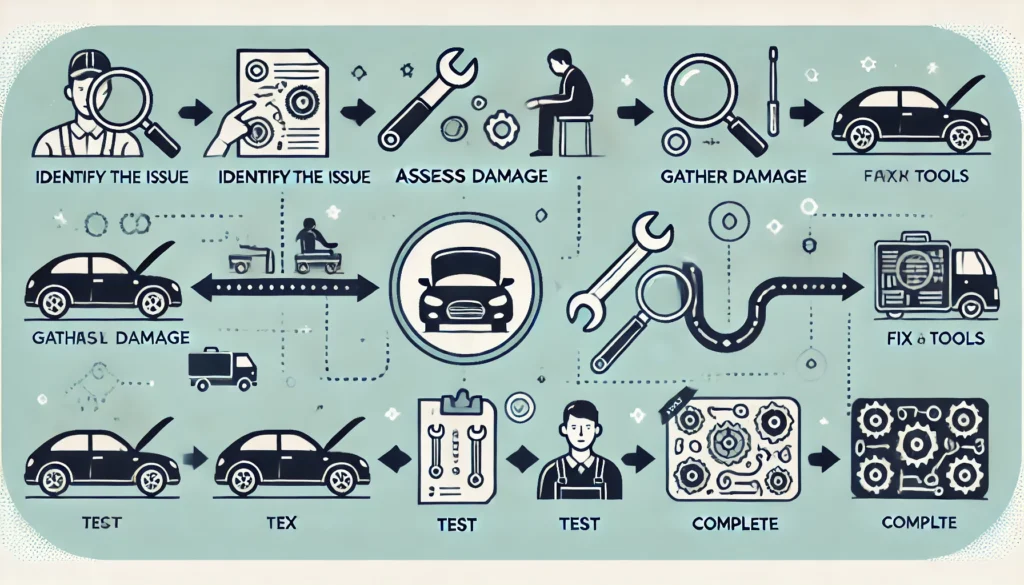
What is the Repair Process for the Iceriver KS7?
If your miner needs repair, here’s what to expect.
Contact support, provide necessary details, and follow their instructions to send the device for repair.
Returns & Warranty Policy
- Final Sale
- All sales are final. Returns and exchanges are not accepted.
- Exceptions apply only where required by applicable consumer protection laws.
- Warranty Period
- A 180-day warranty is provided, starting from the shipping date.
- If the server requires repair within the warranty period, contact customer service to submit a repair ticket.
- ICERIVER will cover the return shipping cost for the repaired equipment.
- Warranty Exclusions
The following conditions are not covered by the warranty:- Product damage caused by improper installation, use, or maintenance.
- Damage or malfunction caused by dropping, misuse, negligence, or improper operation.
- Damage caused by physical interference, including moisture, fire, flood, lightning, transportation, or extreme environments.
- Products without the original barcode or SN label, or with altered, damaged, or removed labels.
- Servers with firmware modified by a third party.
- Removal or replacement of any components by the customer without prior official approval.
- Damage caused by moisture, oxidation, corrosion, short circuits, water immersion, or humid environments.
- Missing pins or PCB damage caused by improper packaging or handling.
- Use of harmful substances (e.g., oil, cleaning agents) that pose a health risk during repair.
- Service Request
- If your server does not operate according to official standards, please submit a ticket
- If your server does not operate according to official standards, please submit a ticket
- Return Process
- You must provide the original order ID, a photo of the server’s SN tag (showing the hashrate), detailed status information, and supporting screenshots.
- If a defect is confirmed by troubleshooting and an ICERIVER representative, return the component as follows:
a) Log in to your ICERIVER account.
b) On www.iceriver.io, go to “Support” > “Repair Order” > “Create Order”.
c) Fill in all relevant fields.(Please provide the correct server SN, item list, and tracking number related to the warranty parts, otherwise the package will be rejected)
- Shipping Costs
- The product owner is responsible for the shipping cost to send the product to our service facility.
- If the return is within the warranty period, ICERIVER will cover the shipping cost to return the repaired product to you.
- Transport Liability & Contact
- We are not responsible for any losses incurred during transportation by the customer’s chosen carrier.
- It is highly recommended to use internationally reputable logistics companies to minimize risk.
- For further support, please contact customer service:
Conclusion
By following this guide, you have successfully navigated the initial setup of your IceRiver KS7. You’ve transformed it from a powerful piece of hardware into an active, profit-generating node on the Kaspa network.
Remember, the journey doesn’t end here. Consistent monitoring, maintaining optimal cooling, and staying informed about network difficulty and Kaspa’s price are key to maximizing your returns. Your KS7 is now a powerful tool; manage it wisely, and it will serve as a robust engine for your mining endeavors.
Welcome to the forefront of KAS mining.
Click here for more helpful resources and support!
Happy mining! ⛏️💰

